
Firmiva PracticeEarly access · requests not open yet
The workspace for your firm’s client work
Firmiva Practice connects your clients, the services you agree with them, and the projects and tasks that deliver those services, with roles, permissions and an audit trail built in.
Guided tour
Nine screens, one connected workspace
Step 1 of 9 · Dashboard
Start with what needs attention
The dashboard counts the firm’s own records: what’s overdue, what’s due this week, open work, active engagements and active clients.
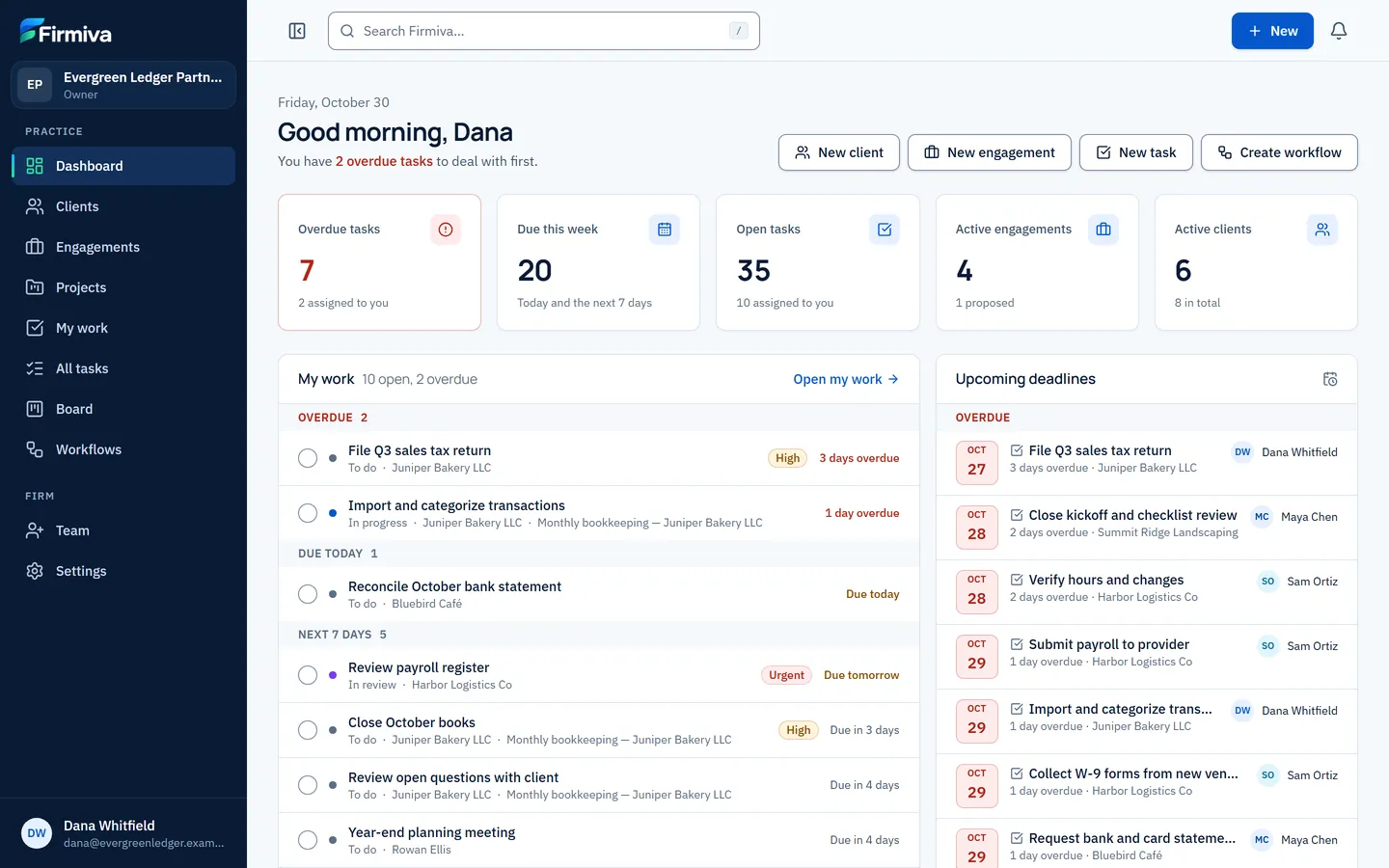
- Five headline figures. Each one opens the list behind it.
- Your own work, grouped: overdue, due today, the next seven days.
- Upcoming deadlines across the firm, with each task’s owner.
Step 2 of 9 · Client workspace
Each client, in one place
A workspace per client brings together contacts, notes, engagements, tasks and an activity history of changes.
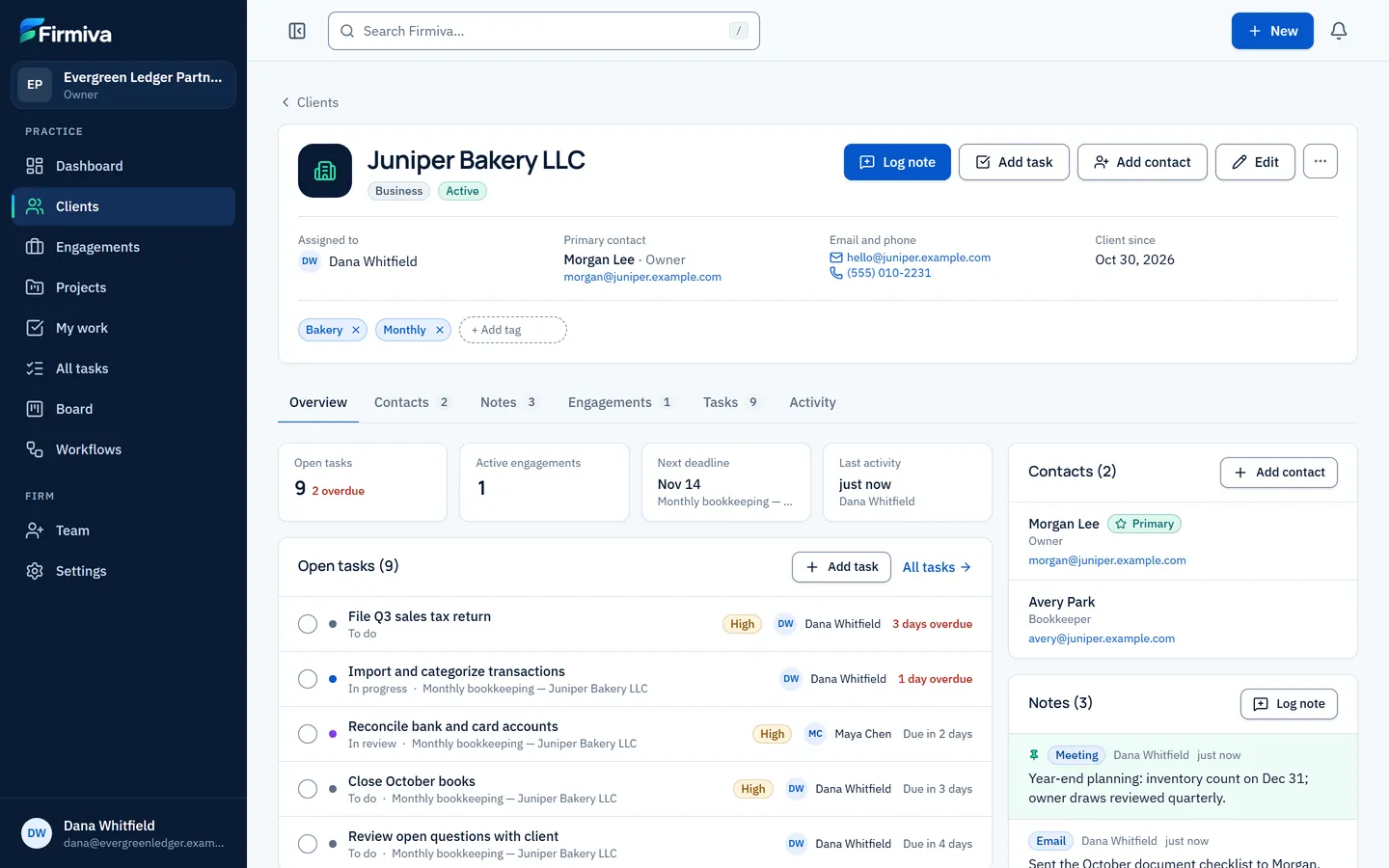
- Status, owner and primary contact at a glance.
- Overview, contacts, notes, engagements, tasks and activity.
- Pinned notes stay on top.
Step 3 of 9 · Engagement
The service you agreed, and its approval
An engagement records what you agreed to do: service, scope, owner, deadline and an internal price estimate, with a lifecycle and an approval record.
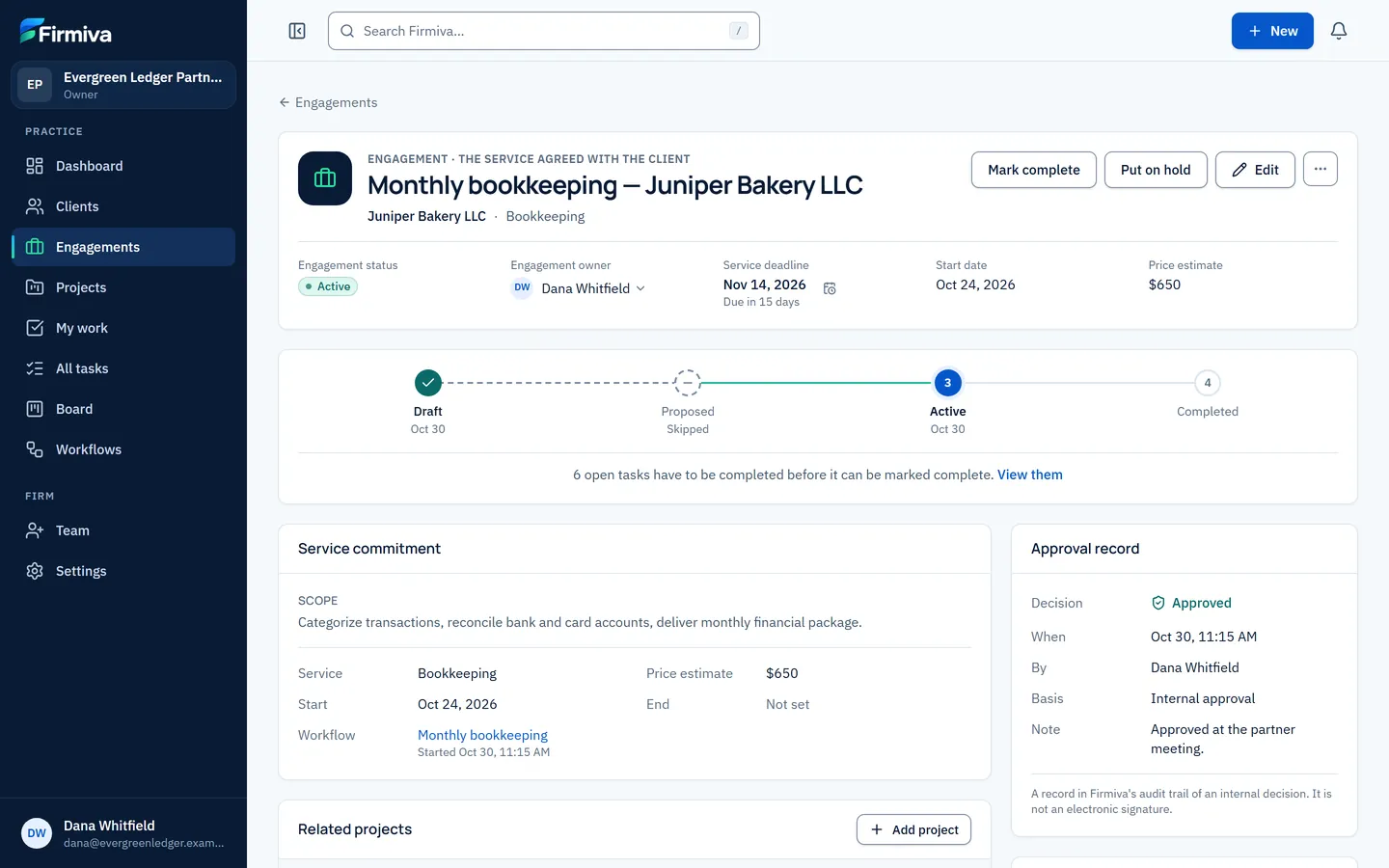
- Engagement status, owner and service deadline.
- The lifecycle: draft, proposed, active, completed.
- Who approved it, when, and on what basis.
Step 4 of 9 · Approval
See the work before you approve it
Approving asks how the engagement was approved and shows what the workflow will create: how many tasks, when they’re due and who they’re assigned to.
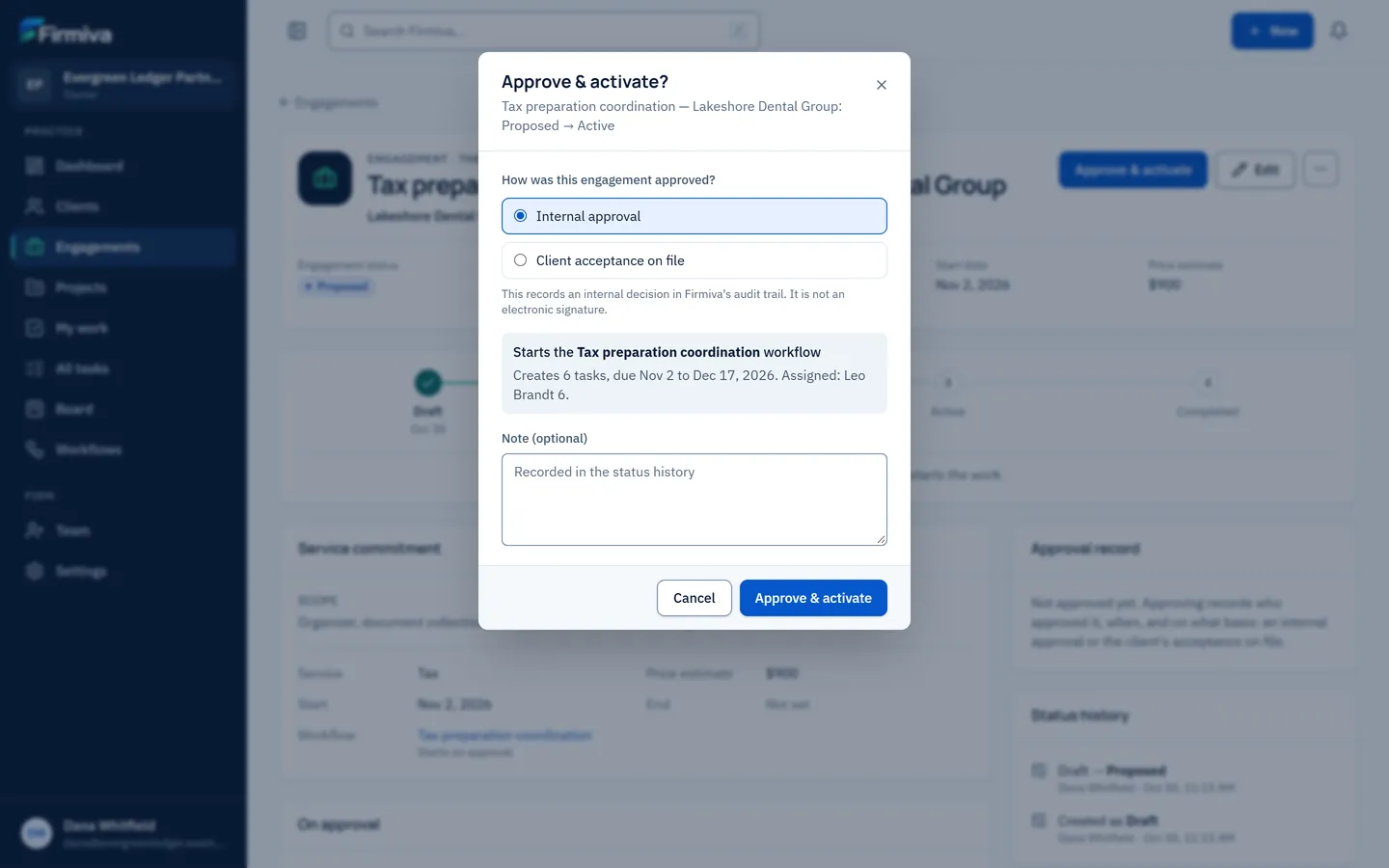
- Internal approval, or the client’s acceptance on file. A record, not a signature.
- What the workflow will create, before anything is created.
- An optional note, kept in the status history.
Step 5 of 9 · Workflow template
Write your process once
A workflow template is an ordered list of steps. Each step becomes a task when the workflow starts.
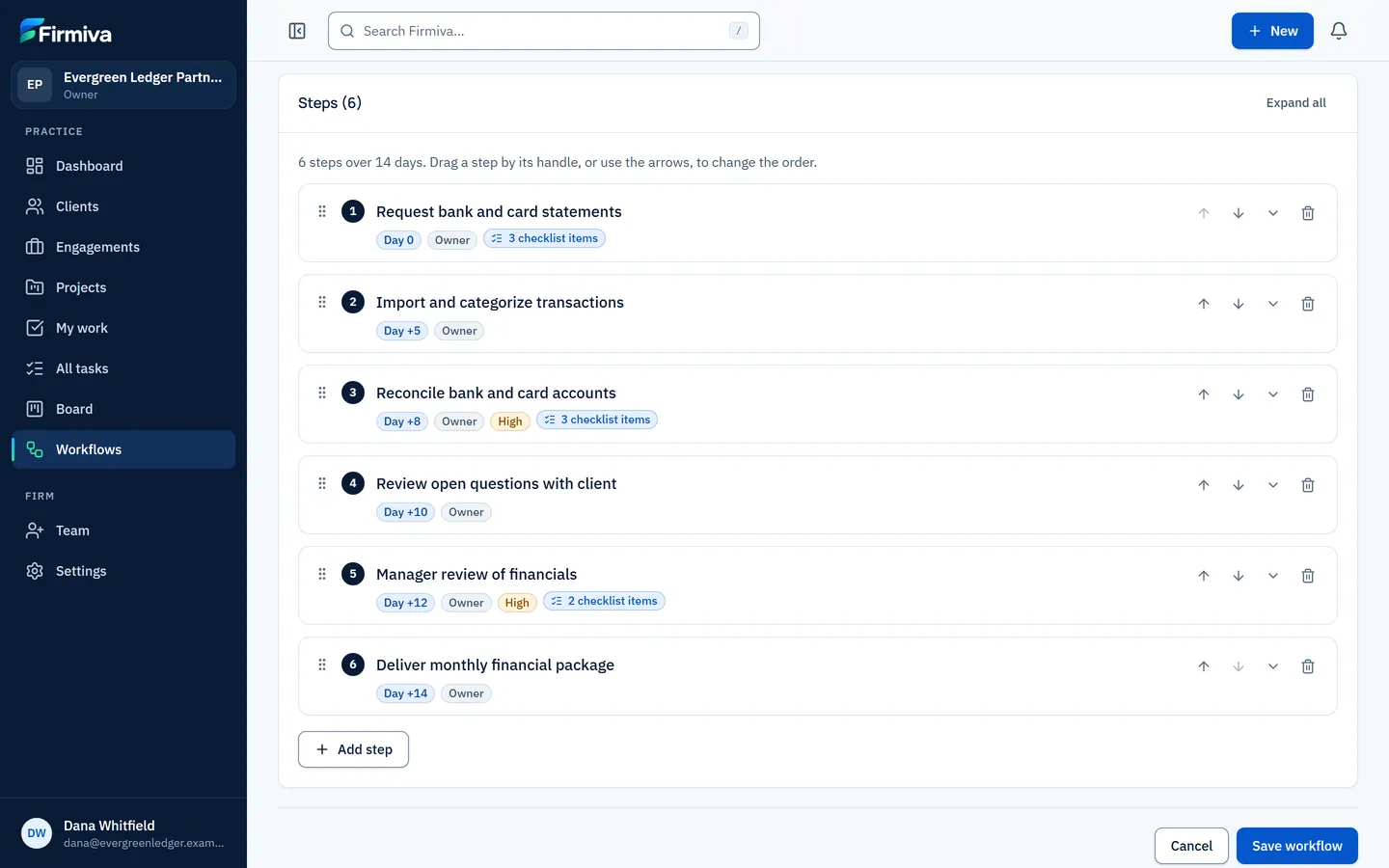
- Ordered steps, each one a future task.
- Due dates as days after the start.
- Reorder by dragging, or with the arrow buttons.
Step 6 of 9 · Project
The work that delivers the service
A project has its own status, owner and dates, its progress and tasks, and a link to the engagement it belongs to, or none if it stands alone.
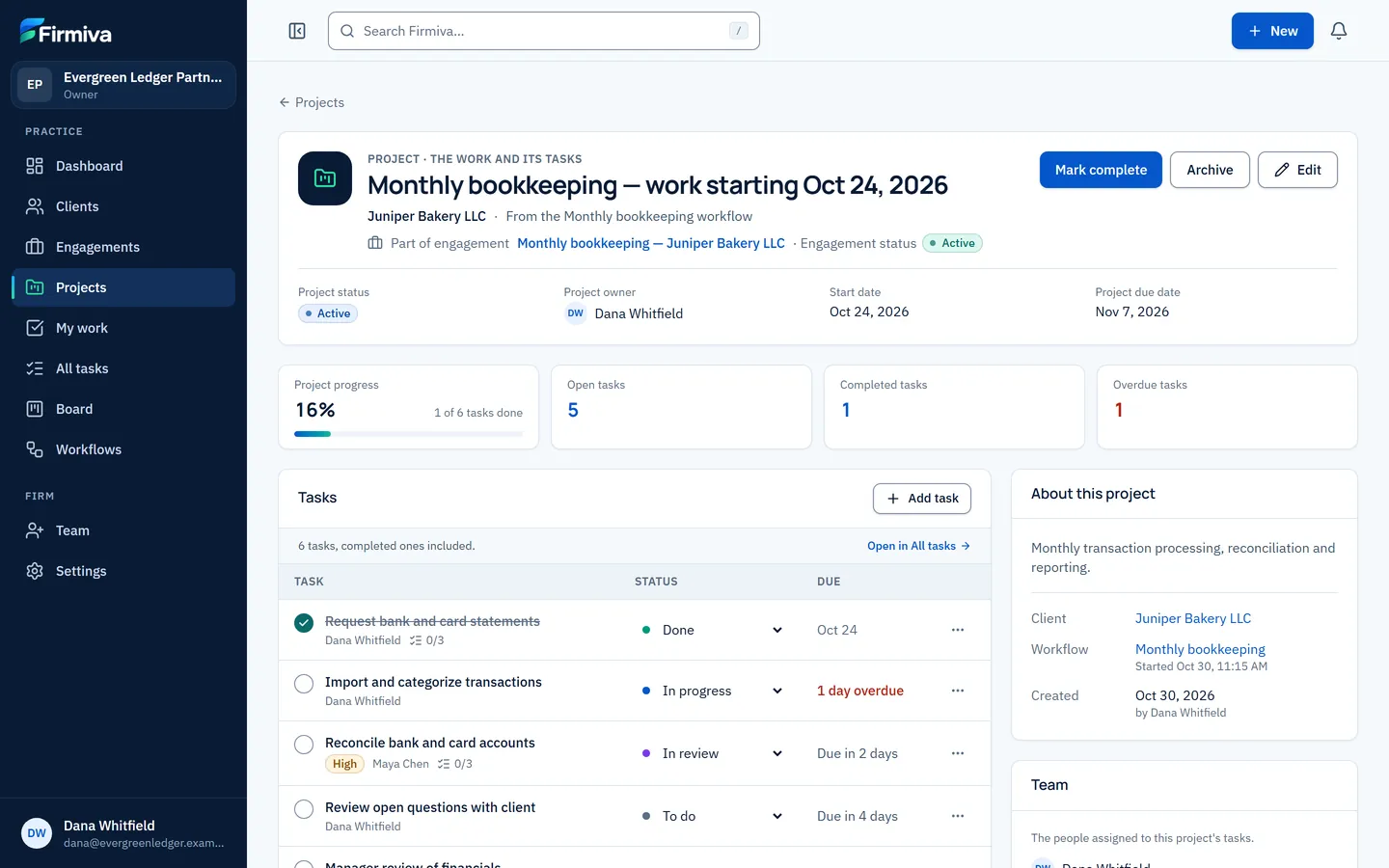
- Part of an engagement, with both statuses shown.
- Progress and task counts from the project’s tasks.
- Change status inline, or open a task.
Step 7 of 9 · My work
Your own work, in the order it’s due
My work groups the tasks assigned to you into overdue, due today, this week and later, with a link to each group and one-click completion.
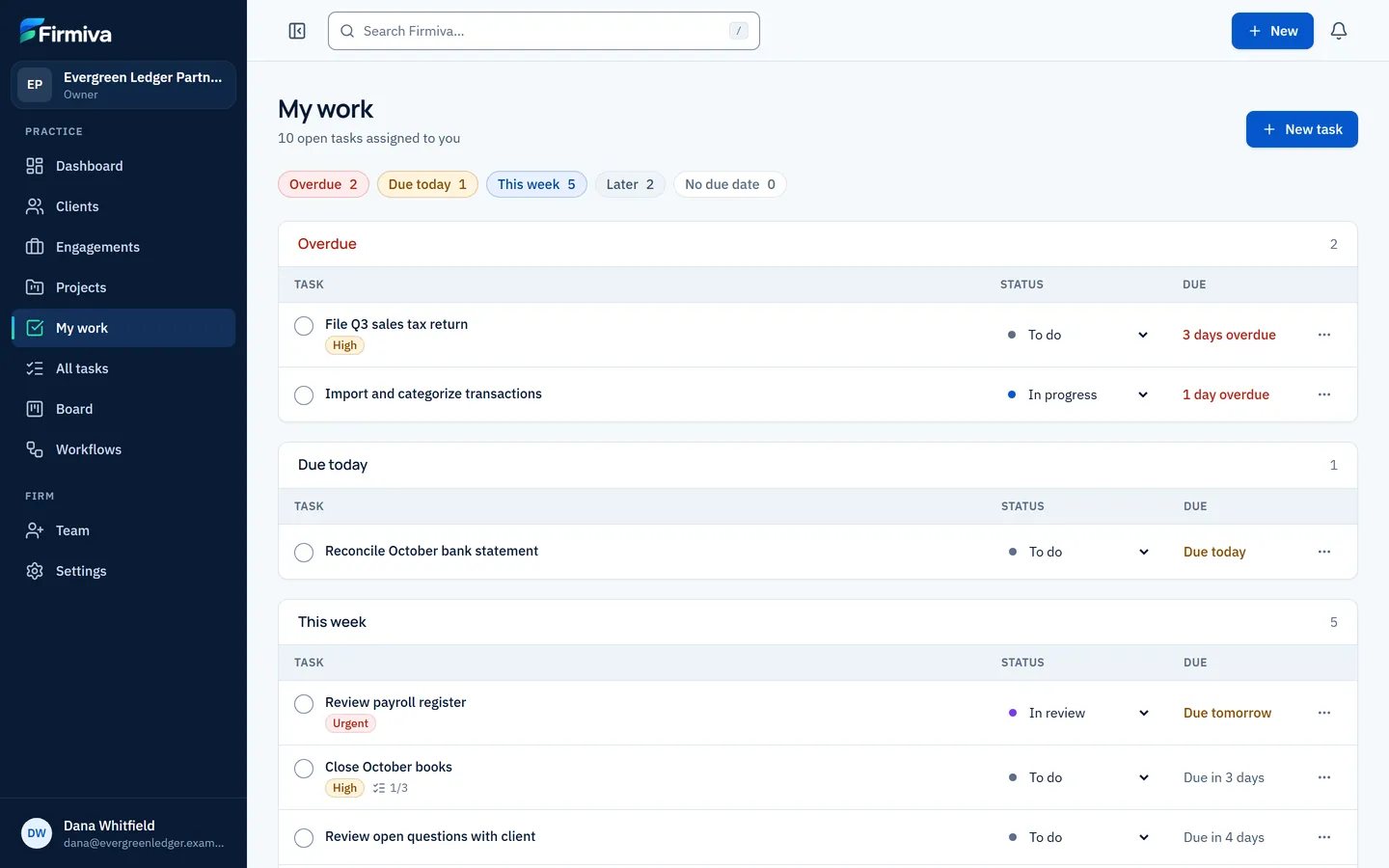
- A link to each group, with its count.
- Grouped by when it’s due.
- Change a task’s status right from the list.
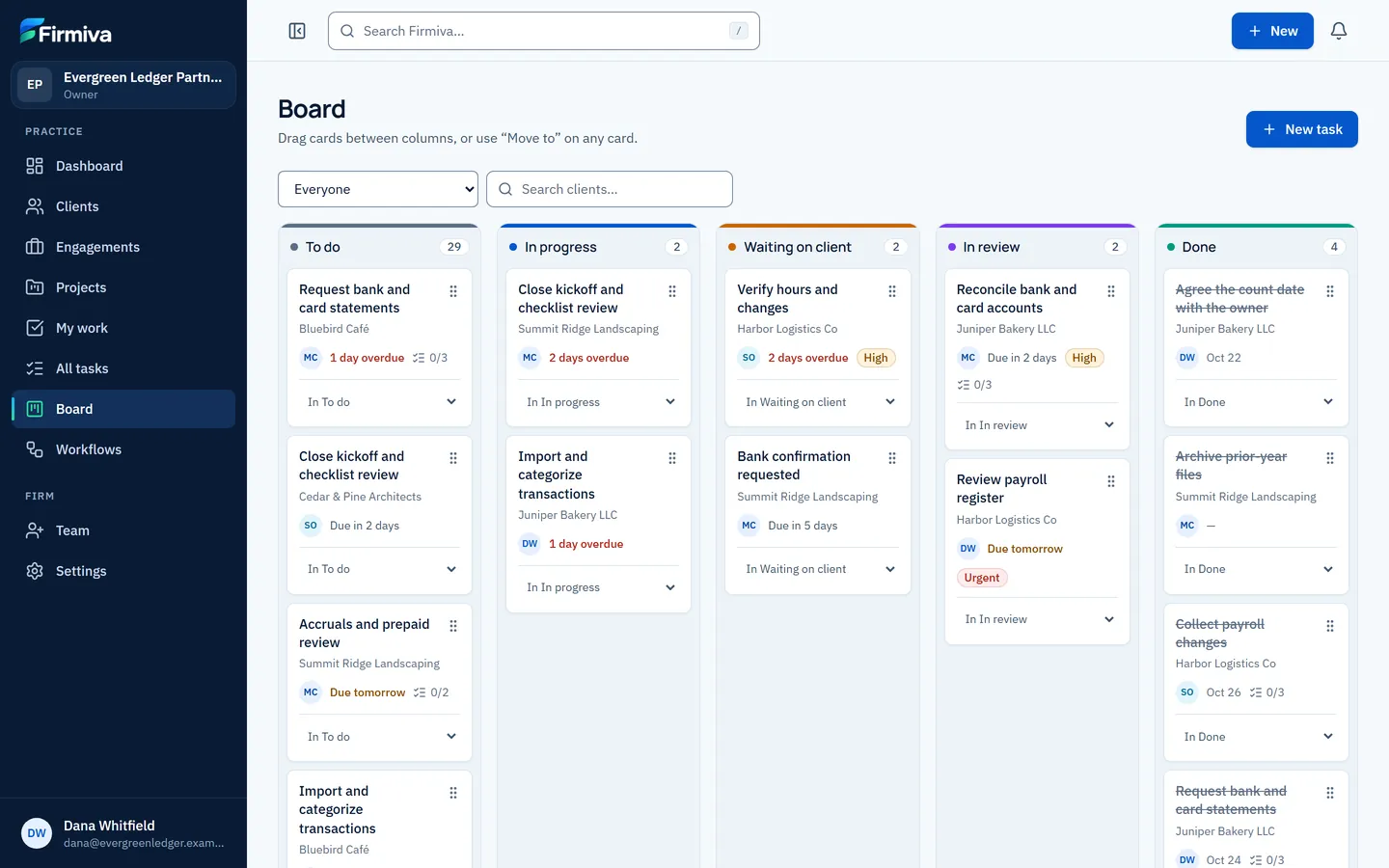
Step 8 of 9 · Board
Move work across the board
Five columns from to do to done. Drag a card, or use the “Move to” menu on every card, which works with a keyboard.
- Status columns with counts.
- “Move to” on every card.
- Waiting on the client, kept visible.
Step 9 of 9 · Team and roles
Roles the server enforces
Each person has a role, from owner to read-only. The server checks it for every action on firm data, and the interface hides what a role can’t do.
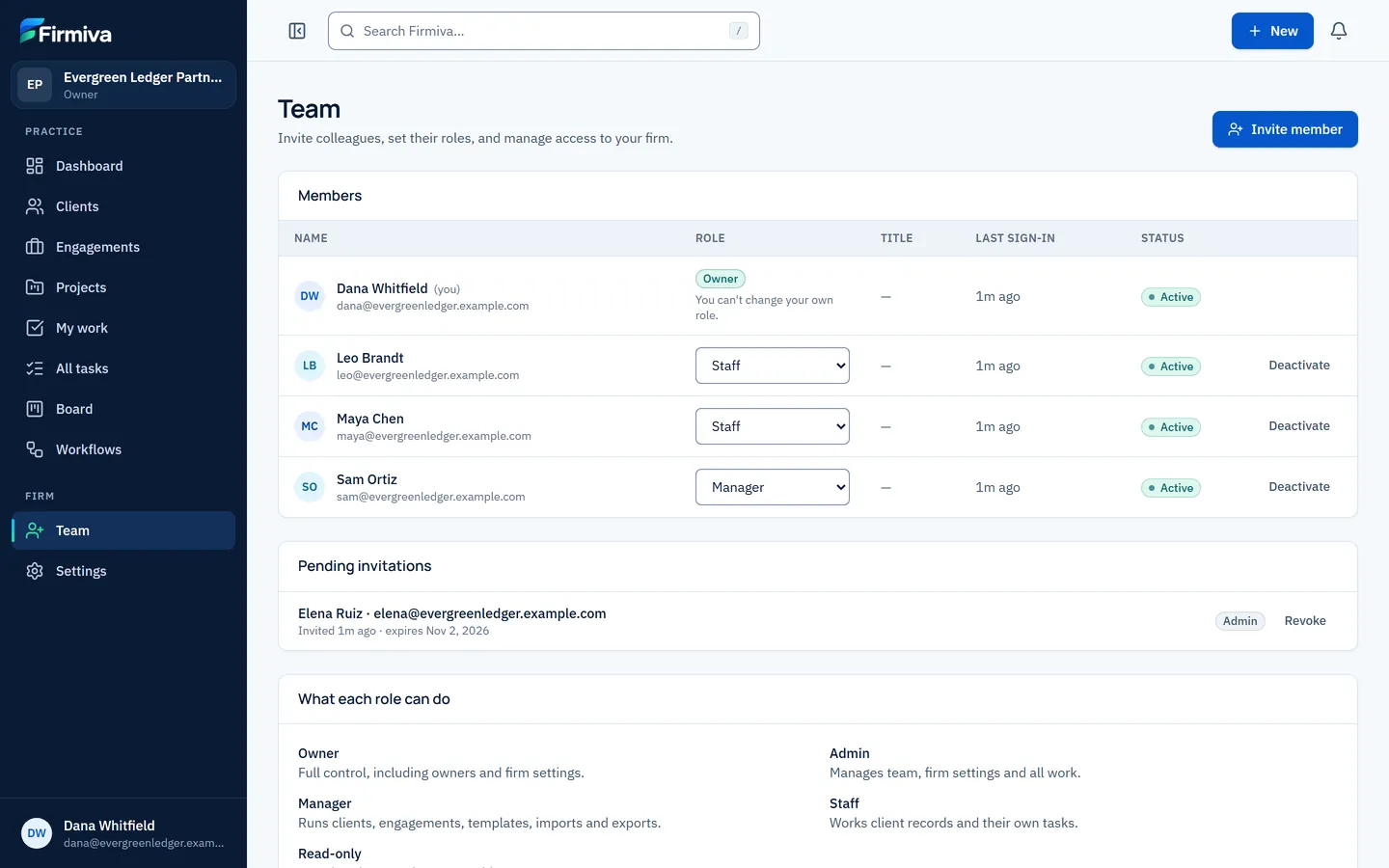
- Change a member’s role.
- Pending invitations.
- What each role can do, said plainly.
Clients
Every client, in one place
Keep every client in one searchable directory, then open a workspace with their contacts, notes, engagements and work.
- Businesses and individuals, with a status from lead to active, an owner, tags and your own custom fields.
- Several contacts per client, one of them primary, and notes for calls, meetings and emails, with pinned notes on top.
- CSV import that matches columns, checks every row and flags duplicates before anything is saved; CSV export that follows your filters.
- Archive and restore: client records aren’t deleted from the interface.
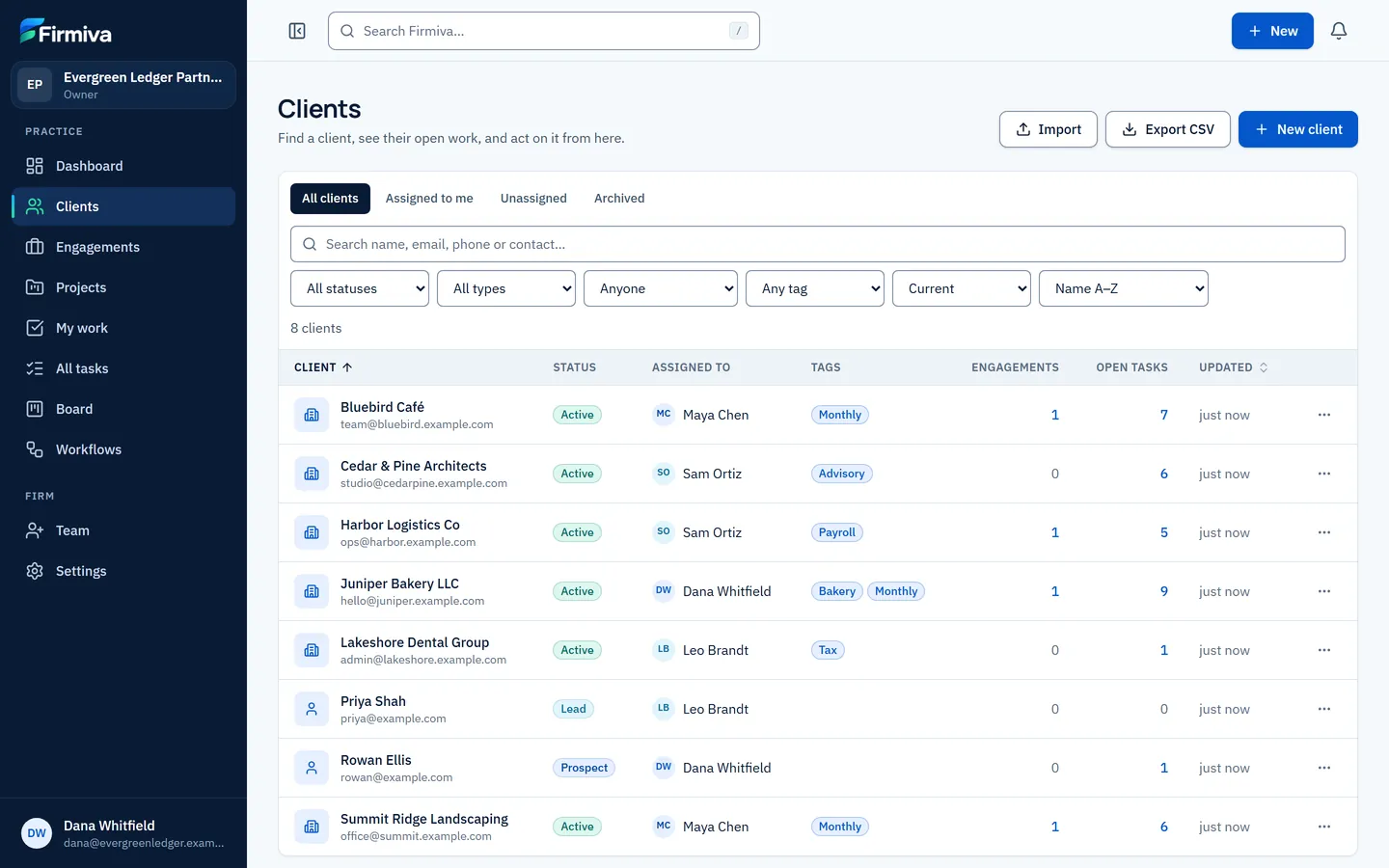
From Firmiva Practice, with sample data.
Engagements
The service you agreed, with an approval record
An engagement records what you agreed to do for a client: the service, scope, owner, team, deadline and an internal price estimate. Start from a service template or from scratch.
- A clear lifecycle: draft, proposed, active and completed, with on hold and cancelled. Moves that don’t make sense are refused.
- Activation records an approval: an internal approval, or a note that the client’s acceptance is on file, with who and when. A record, not an electronic signature.
- Completion waits until every task is done. Cancelling retires the open tasks without deleting them.
From Firmiva Practice, with sample data.
Workflow templates
Write your process once. Reuse it.
A workflow template is an ordered list of steps, and each step becomes a task when the workflow starts.
- Due dates set as a number of days after the start date.
- An owner rule for each step: the engagement owner, a named person, or unassigned; a priority and a checklist.
- Reorder steps by dragging, or with the arrow buttons.
- Edits apply to future work only, so nothing already under way changes.
From Firmiva Practice, with sample data.
Projects
The engagement is the service. The project is the work.
When an engagement with a workflow is approved, Firmiva starts its project. An engagement can have several projects, and a project can also stand on its own.
- Exactly once: double clicks, retries and simultaneous requests don’t create duplicate projects or tasks.
- A project workspace with progress, open, completed and overdue tasks, the linked client and engagement, and activity.
- A project has its own status; when its engagement is completed or cancelled, its projects follow.
- A projects directory with views, search, filters and sorting.
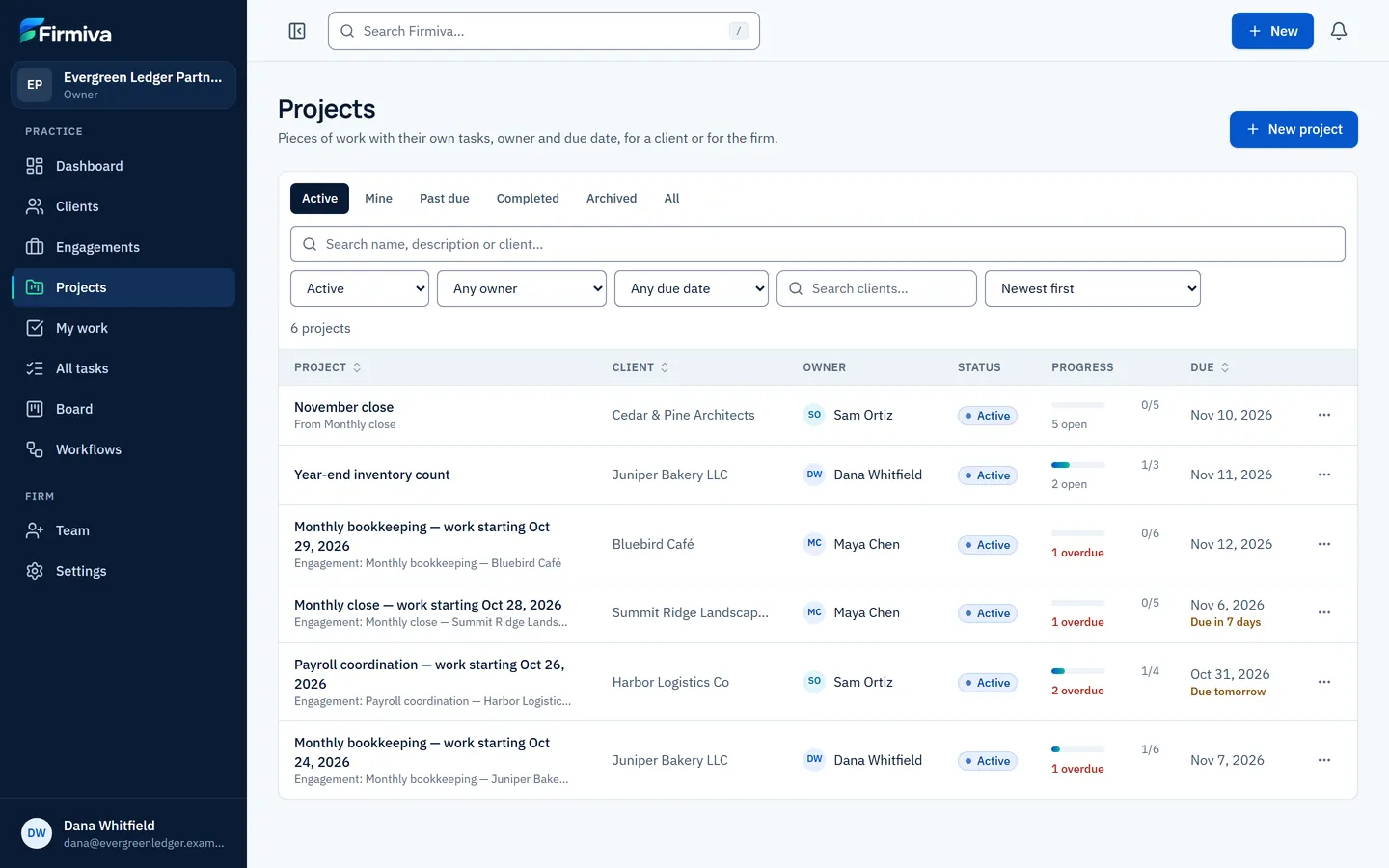
From Firmiva Practice, with sample data.
Tasks
My work, All tasks, the board and the task page
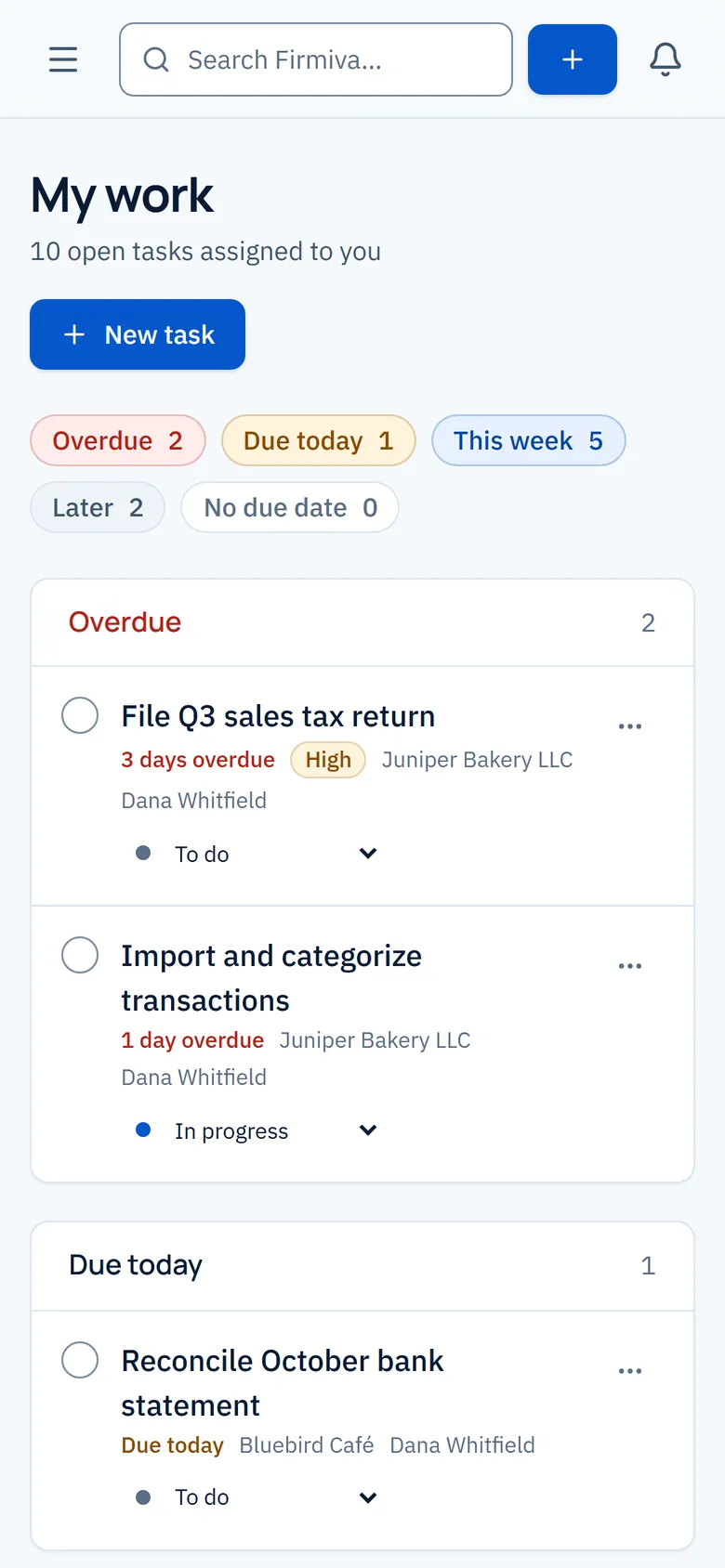
My work
Your tasks grouped into overdue, due today, this week and later.
From Firmiva Practice, with sample data.
All tasks
The firm’s work, filtered by status, assignee, priority, due date, client or search.
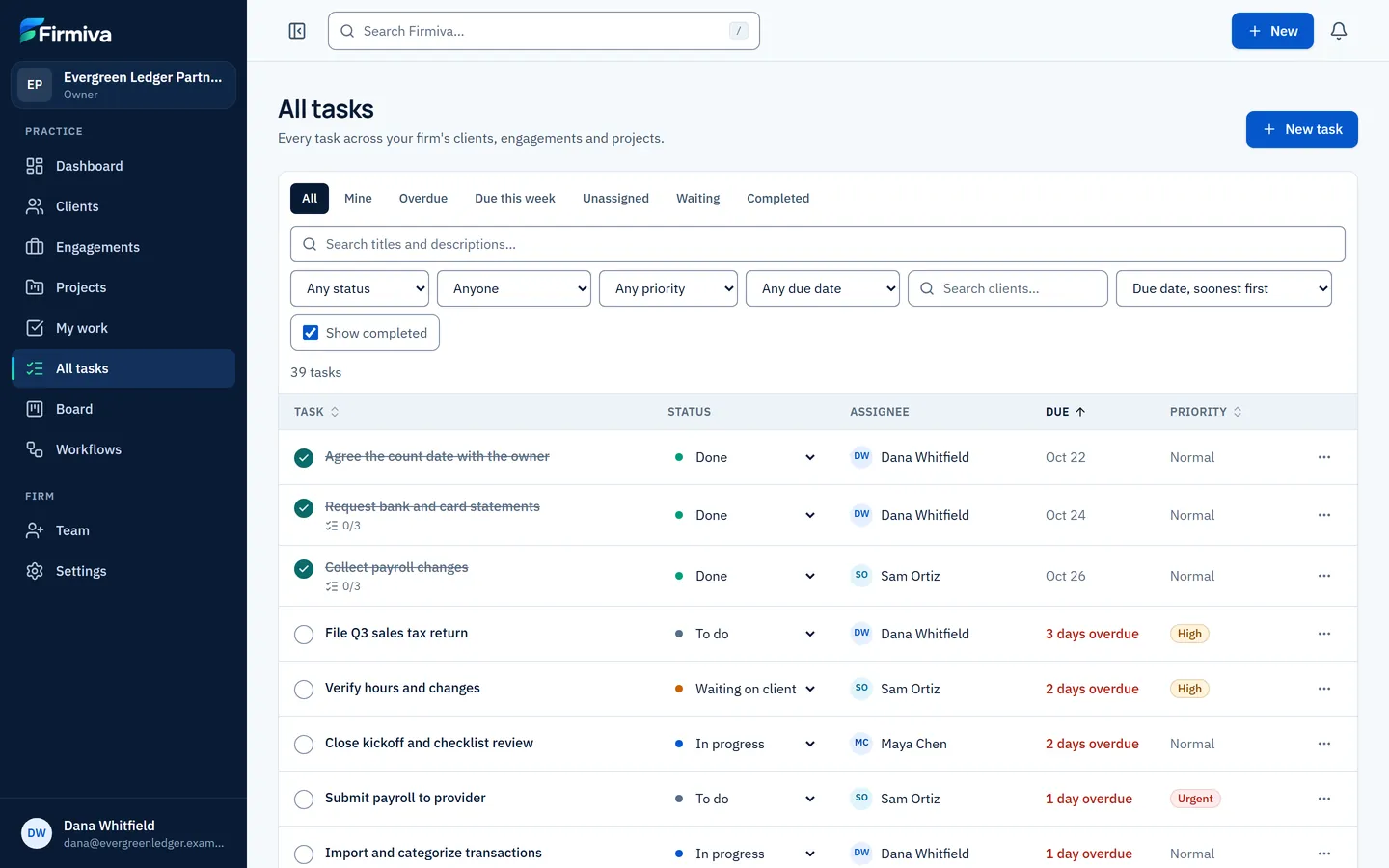
From Firmiva Practice, with sample data.
Board
To do, in progress, waiting on client, in review and done. Drag a card, or use “Move to”.
From Firmiva Practice, with sample data.
Task page
Description, checklist and comments, with status, priority, assignee and due date beside them.
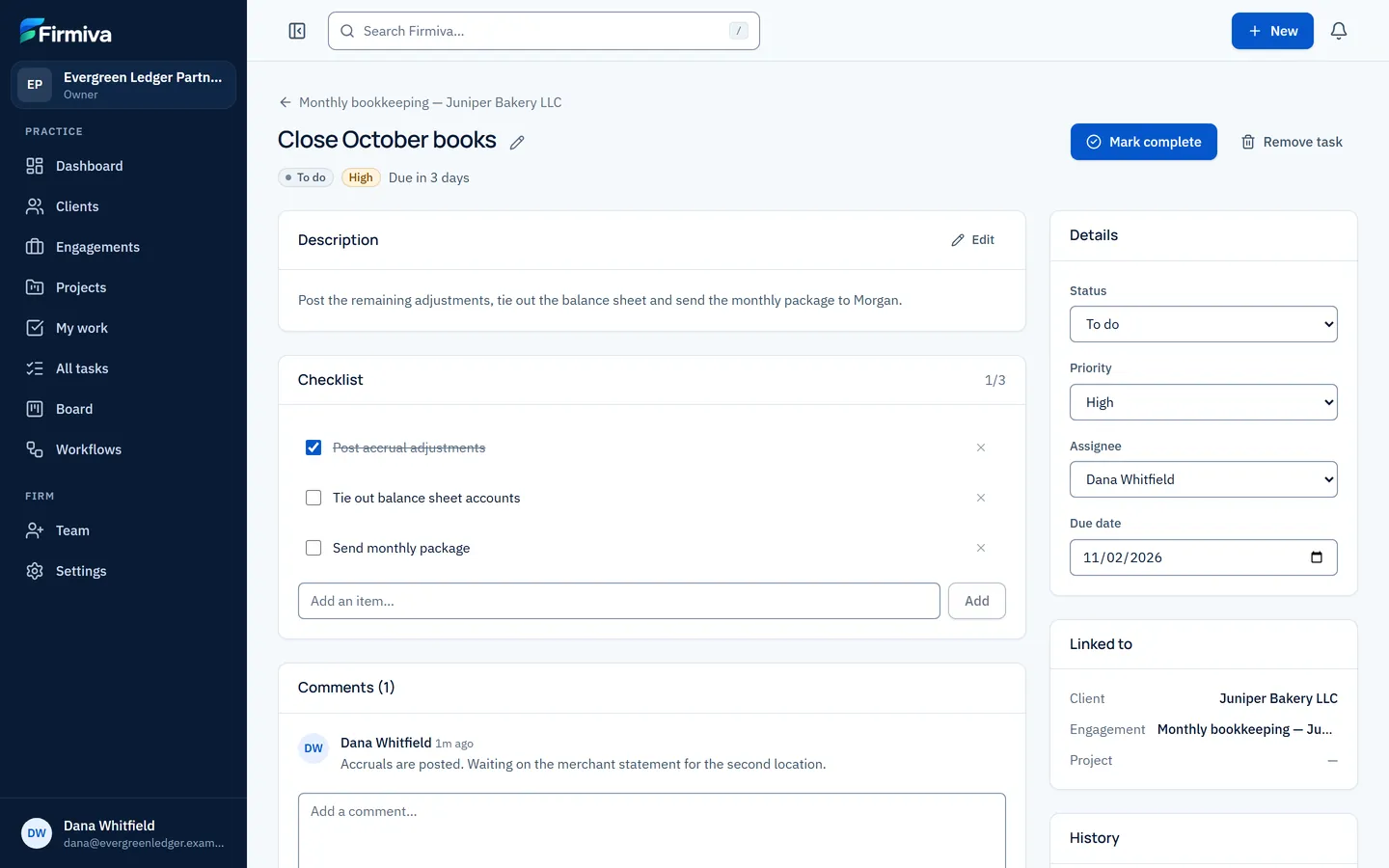
From Firmiva Practice, with sample data.
Dashboard
A dashboard that counts your own data
The dashboard shows what needs attention first. Every number is computed from your firm’s records, and each headline figure opens the list behind it.
- Overdue tasks, tasks due this week, open tasks, active engagements and active clients.
- Your own work and the upcoming deadlines.
- Work by status, the engagement pipeline and recent activity.
- Quick actions for a new client, engagement, task or workflow.
From Firmiva Practice, with sample data.
Team and roles
Five roles, enforced by the server
Owner
Everything, including granting owner and admin access. A firm always keeps at least one active owner.
Admin
The team (except owner and admin access), the firm profile and client custom fields, plus all client work.
Manager
Clients, including import and export, engagements, templates and projects. Can assign any task.
Staff
Sees all of the firm’s work and creates clients, notes and tasks. Among tasks, changes only those assigned to or created by them, and assigns tasks only to themselves.
Read-only
Sees the firm’s clients, engagements, projects, tasks and team, and changes nothing.
Audit trail
Who changed what, and when
- WhoThe person who made the change.
- WhenThe time it happened.
- WhatThe record, and for core records the fields that changed.
- Append-onlyNo edits, no deletions, enforced in the database.
Anywhere you work
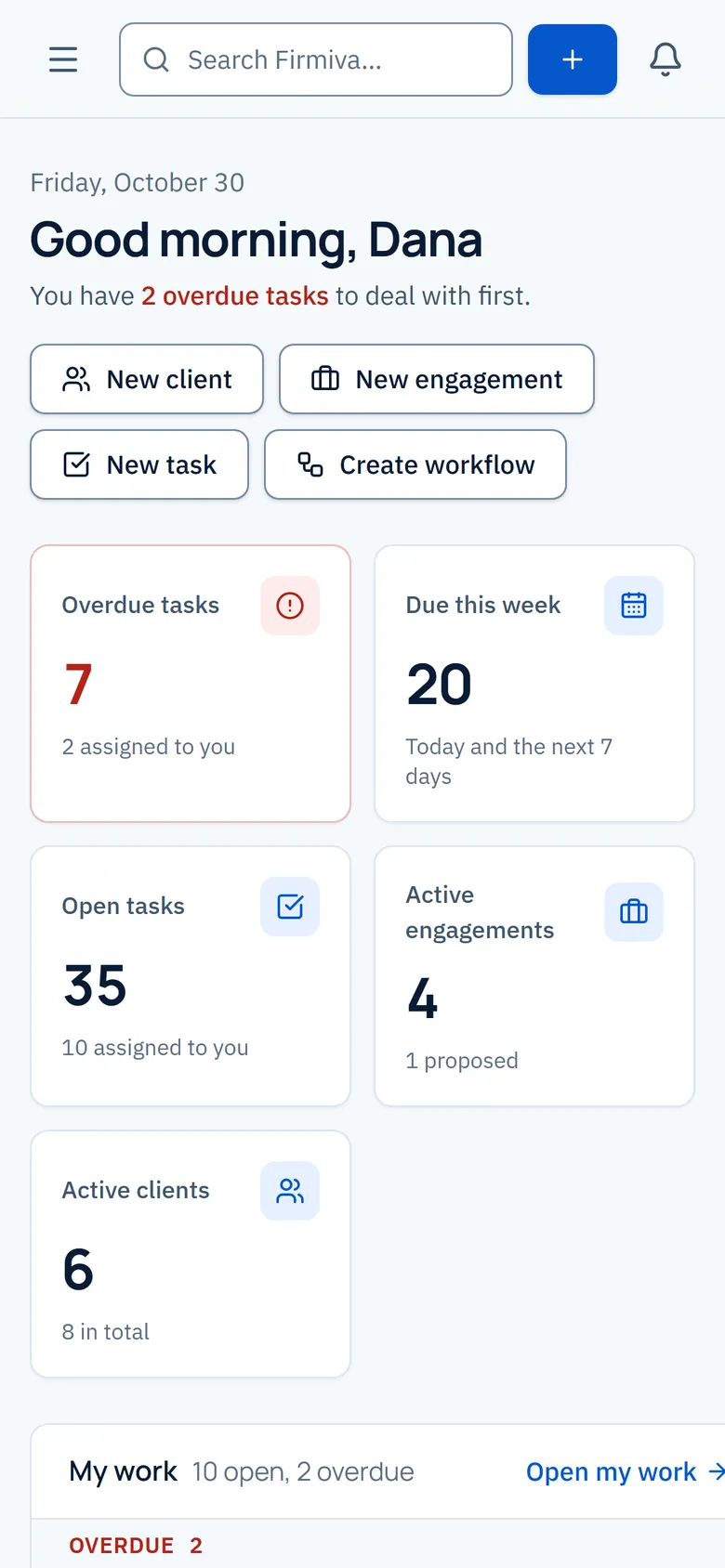
Phones, tablets and desktops
What’s next
Coming next, and not in Practice yet
- Built, not yet released · not available yet
Bulk task actions
Select several tasks in All tasks or My work and update them in one step.
- In development · not available yet
Recurring engagements
Monthly, quarterly and annual schedules on an ongoing engagement, so each period’s work starts once, with deadlines in your firm’s time zone.
Not in Practice yet
- Email delivery of invitations, password resets and notifications (planned).
- Multi-factor authentication or single sign-on (planned).
- A client portal, time and billing, accounting or tax features (planned modules).
- Production hosting for customer data (not yet).
Firmiva isn’t generally available yet
Early-access requests aren’t open yet. If you run or work in an accounting firm, see what early access will include and how requests will open.